Showing posts with label Android Tips. Show all posts

Monday, 3 April 2017

Reasons to Disable Auto Start Applications And How To Disable Auto Start Applications On Infinix And Other Android Devices With XManger

Reasons to Disable Auto Start Applications And How To Disable Auto Start Applications On Infinix And Other Android Devices With XManger

From our previous write up, we considered How To Lock Android Apps With Password  On Infinix And Other Android Devices With XManger. With the same third party application, we'll also be considering how to Disable Auto Start Applications.

There are so many reasons factors that makes apps to be disabled from auto starting at the booting of an Android Smartphone. Below are simple reasons why you should disable some applications from auto starting at the booting of your Android device.


Reasons To Disable Some App From Auto Starting
  • Apps like Facebook, Messenger, Whatsapp and Browsers exhaust more RAM of your device, and once not disabled, this applications automatically start at the powering on of your device.
  • Some Apps are high data accumulator, that uses background data without making use of them. And once not disabled and your device is powered on, they start automatically to exhaust your data. 
  • Battery draining applications finds it very easy to drain your battery as quick as possible if they are not disabled from starting automatically from boot. 
After considering the factors above, some applications are not really necessary to start at boot. So in that case, they should be disabled and rather be powered on by oneself. Below are steps and guilds on how to disable Auto Start Applications On Infinix Hot Mobiles and Other Android Devices with XManger.


 How To Disable Auto Start Applications On Infinix Hot Devices And Other Android Devices With XManger

Follow the Steps Below To Disable Auto Start Applications With XManger.

Step 1==> Locate XManger on your Menu (inbuilt app for Infinix Hot and some devices) or download app from Google Play Store.

Step 2==> Click Auto-Start Manager.

Step 3==> Switch from Off to On

Step 4==> Select Applications To Disable or Enable To Auto Start At Boot. 

Sunday, 2 April 2017

How To Lock Android Apps With Password Or Pattern On Infinix And Other Android Devices With XManger

How To Lock Android Apps With Password Or Pattern On Infinix And Other Android Devices With XManger


Locking your Android apps gives a total privacy to confidential documents. Locking Android apps on Infinix Hot 3 LTE, Hot 3 Pro, Hot 4 LTE and Hot 4 Pro, tends to be somehow hidden. If not very observant, you'll find it difficult to lock your Android Applications with the Infinix inbuilt third application, but you'd rather choose to download other third party applications from Google Play Store.

The procedures to lock Android Applications on all device and Infinix Hot devices are clearly stated in this article. Follow the steps below know how to lock Android Apps on Infinix Hot mobiles (Mostly applicable to Android 6.0 Marshmallow)

 How To Lock Android App On Infinix Hot 3 LTE,  Hot 3 Pro, Infinix Hot 4 LTE and Hot 4 Pro Mobiles And Other Android Devices

Step 1==> Locate XManger on Your Menu

Step 2==> Launch and Click App Lock

Step 3==> Tap On

Step 4==> Choose to use either a Pattern or A Password (Involving Figures and Numbers)

Step 5==> Select the applications to lock


For users of other devices, XManger Can be gotten from Google Play Store, Or other third party App Store. 

Thursday, 9 February 2017

Secret Android Smartphone Codes All Android Users Should Know

Secret Android Smartphone Codes All Android Users Should Know


For all android smartphone users, try this secret codes! So as to be able to access all hidden menus, diagnostic and state of wireless networks, by dailing the codes.

THE CODES ARE LISTED BELOW

👉. *#*#3646633#*#* - MTK Engineering Mode

👉. *#06# – IMEI number


👉. *#0*# – Service menu on devices like the Galaxy S III


👉.  *#*#4636#*#* – Information about device, user statistics and battery


👉.  *#*#34971539#*#* – Details on camera


👉.  *#*#273282*255*663282*#*#* –Instant backup media files


👉.  *#*#197328640#*#* – Activating test mode devices


👉.  *#*#232339#*#* – Test for Wireless LAN


👉.  *#*#0842#*#* – Test for vibration and backlight


👉.  *#*#2664#*#* – Test for touch screen


👉. *#*#1111#*#* – FTA software version (in 1234 within the same code will provide a view of the PDA and firmware version)


👉. *#12580*369# – Information about the software and hardware


👉. *#9090# – Diagnostic information


👉. *#9900# –System dump mode


👉 . *#301279# – HSDPA / HSUPA Control Menu


👉 . *#7465625# – Look at the status of phone locks


👉 . *#*#7780#*#* –Resetting data to default settings


👉 . *2767*3855# – Formatting the device to default settings (warning – this deletes all date on the devices)


👉 . *#*#7594#*#* – After entering this code, your device will turn off


👉 . *#*#232338#*#* – Display Wi-Fi MAC address


👉 . *#*#1472365#*#* – Quick GPS test


👉 . *#*#1575#*#* – Extensive GPS test


👉 . *#*#0*#*#* – Test LCD screen


👉 . *#*#0289#*#* – Audio test


👉 . *#*#0588#*#* – Test proximity sensor


👉 . *#*#3264#*#* – Display RAM version


👉 . *#*#232331#*#* – Bluetooth test


👉 . *#*#232337#*# – Bluetooth address


👉 . *#*#7262626#*#* – Field test


👉 . *#*#8255#*#* – Tracking Google Talk service


👉 . * # * # 3424 # * # * – test function for HTC devices


👉. *#*#4636#*#* – HTC info menu


👉. ##8626337# – Run VOCODER

Friday, 20 January 2017

How To Backup And Restore My Whatsapp Messages On My Android Phone Or iPhone.

How To Backup And Restore My Whatsapp Messages On My Android Phone Or iPhone.


WhatsApp is a tremendously useful way to keep in touch with people all over the world for free. There is a rather large problem that users can encounter though, and that is when moving onto a new phone by default their conversations don’t come with them. This is due to the way the app stores content locally rather than on web servers. If you still have your old phone to hand, and haven’t switched from Android to iOS or vice versa, then it’s still possible to salvage those old chats and move them safely to a new home. In this guide we’ll take you through the short process of copying and restoring your digital missives.

How to back up WhatsApp messages, how to restore WhatsApp messages to a new phone: iPhone
There are a few different ways to keep your conversations on your iPhone, but the easiest is by using iCloud backup. To do this you’ll need to take your old handset and go to WhatsApp Settings, Chats, Chat Backup and then tap Backup Now.
restore whatsapp chat history
On your new handset, reinstall WhatsApp, confirm your phone number (which has to be the same as the one used on your old phone) and you will be prompted to restore your chat history. Agree to this and your backup should be installed, replete with your conversations. It’s also worth going back to the settings and enabling the Auto Backup feature now, so you’ll be good to go when you upgrade to your next iPhone in a couple of years time. 

How to back up WhatsApp messages, how to restore WhatsApp messages to a new phone: Android
The easiest way to back up and restore WhatsApp messages between Android phones is to use Google Drive, since it's a free app that's available to all Android phones. You can also use an SD card if one is installed in your phone, but do so only if that SD card can be inserted to your new phone also. 
You will want to ensure you have Google Drive installed (and logged into the same Google account) on both new and old Android phones. 
Now open WhatsApp on the old Android phone, tap the three dots in the top right corner and choose Settings.


Select Chats, then Chat backup. Select Back Up to back up your WhatsApp chat history to Google Drive.
Now, on the new phone, verify your WhatsApp account with your phone number. You will automatically be prompted to restore your WhatsApp messages from a Google Drive backup. Select the most recent backup and your messages will be restored in the background.

restore whatsapp chat history

How To Configure Network Type On your Android Device.

How To Configure Network Type On your Android Device.

Smartphone owners usually run into internet configuration problems after a updating to a more recent version of Android. We received quite a few complaints from users who experienced just this, so we decided to write up a quick and easy tutorial that will hopefully fix the issue. The tricky thing, for beginner users at least, is that connection settings, though they exist, are sometimes well hidden.

Android Nougat is a prime example of when this issue arose, forcing you to reconfigure your carrier settings often, as they’d be set to ones that would use up more data unnecessarily. In fact, this is one of the most common problems encountered by Nougat users.
The settings are sometimes changed as if by magic, or they return to their default state from when you first unboxed your Android smartphone or installed a custom ROM.

How to configure 4G / 3G / 2G on your Android
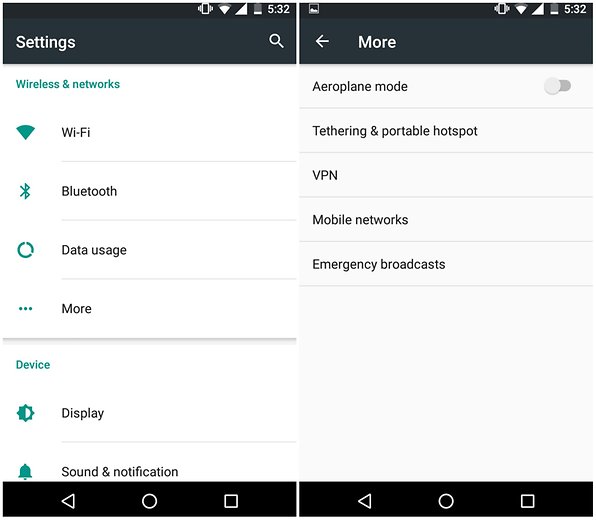
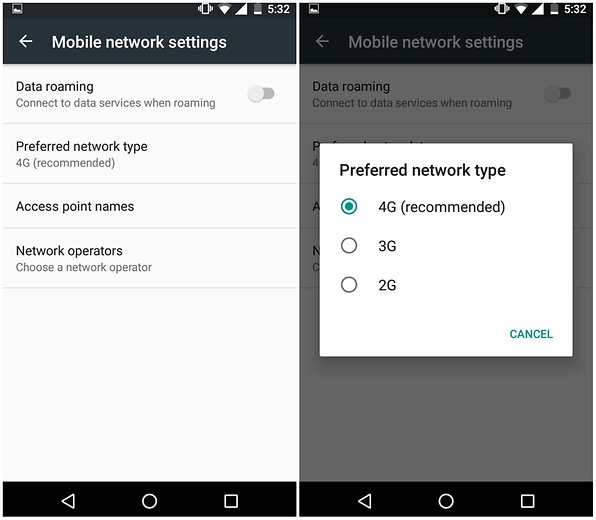
This tutorial can be used for any carrier that provides 2G, 3G or 4G, though the exact steps may vary slightly by device. Simply go to Settings, then MoreMobile networks and finally Preferred network type. There you can choose between the three options.


androidpit internet settings 1
First head to Settings and choose More. / © WebprofTech.ml
androidpit internet settings 2
After, select Mobile network settings and Preferred network Type. / © WebprofTech.ml

Depending on your data plan, being on 4G may use your allotted amount quicker than when using 3G, which is usually fast enough for normal smartphone usage and in any case saves data considerably.
How To Copy Any Text Or File From Anywhere with Microsoft’s Clip Layer App

How To Copy Any Text Or File From Anywhere with Microsoft’s Clip Layer App

How To Copy Any Text Or File From Anywhere with Microsoft’s Clip Layer App


Have you ever tried to copy a write up on your Android phone, and it just wouldn’t go through? On some apps, displays or websites, it’s simply impossible to duplicate snippets of text. With Clip Layer app, say no more. This app launches on any display screen, and allows you to duplicate something displayed at the display screen.

Right after installation, you have to select Clip Layer as your default Assist App. This replaces Google Now and allows it draw over other apps. You can now proceed to copy any text from anywhere on your phone. After selecting any chunk of text, options appear below to email it, or share it to any other app installed on your phone.
Clip Layer
This app changes the way we copy text on our phones. It was designed by Microsoft as an experimental project. Unfortunately for some, it works only only on devices with Android Marshmallow. Download Clip Layer HERE

Wednesday, 30 November 2016

How To Tweak/Change The IMEI number Of Your Android Device With MTK Engineering mode

How To Tweak/Change The IMEI number Of Your Android Device With MTK Engineering mode

Many people still find it difficult when it comes to tweaking/changing the imei number of there android device. This article is created to enlighten us on how to change the imei number of your Android device with MTK engineering mode without much stress with clear explanations.


To do this we need to install two apps. 

• Imei analyzer apk

• MTK engineering mode apk

First we start with the imei analyser.

The imei is a very delicate number so you can't just randomly generate numbers and tweak them you have to first analyse it. 

This is how we do that;

Let me use the infinix hot note example again. 

First we get the identifying number of the phone we want to change to. 

"358429063" the first nine digits of an imei number are the legit numbers the rest can be tweaked but do not change the first nine digits. 

After getting the first nine, you randomly add any 5 numbers.

So we have 14 digits now. "35842906312345" remaining one more number. 

This last number is called the "check digit" so it cannot be randomly added.
If you do, you'll end up having a bogus imei number that doesn't work. 

This is where the Imei Analyser comes to pay. 

Now open your Imei Analyser and input the 14 numbers we have gotten into the box provided. And click analyse. 

It will analyze it and give you the complete imei number including the check digit. 

How to change android imei

After you've gotten the full imei, write it down, close imei Analyser and openMTK engineering mode


After opening MTK engineering Mode

click on MTK Setting

Then, swipe your screen to the left to view more options. 

Then select CDS Information

How to change imei number

Then select radio information.

How to change imei number without rooting

Then select phone 1 if you want to change the imei for SIM1 
or phone 2 for sim 2

press E on your keypad it will drop down some options, for sim 1 select AT+EGMR =1,7,""

For sim 2 AT+EGMR=1,10,"" 

How to change imei on android


Changing android imei


After that put the new imei between the "" like this AT+EGMR=1,7,"358429063123457" 

Then put a space in between AT and + so it appears like this AT +EGMR=1,7,"358429063123457"

then press sendAT command. 

A message should pop up saying "At command is sent". 

After that toggle your phones's airplane mode on then off. 

Your imei should have changed *#06# to check. 

Note:
It is advisable to back up your original imei should incase your phone is on warranty condition.

Disclaimer:
       As it is totally illegal to change the imei of your device, WebprofTech will not be responsible for any unusual result, if steps are wrongly followed. 


Incase there are questions you need to ask, you can leave a comment, you'll be attended to as soon as possible.

Tuesday, 29 November 2016

How To Use Your Android Flash Light As Incoming Call Notification

How To Use Your Android Flash Light As Incoming Call Notification

This is how you can use your Android smartphone’s flash as incoming call notification

Suppose your phone is in silent mode, and we all know that we couldn’t listen to any noise of incoming calls or message tones. but we used to get vibration but that was not enough nowadays because the upgraded series of upcoming phones doesn’t have the decent vibration to aware people so what if a flash will be lighted in your pocket? it will not cause any harm like vibration does. So here is the tricky and easy part.

How To Set Your Android Flashlight As Your Incoming Call Notification:

You need to install an app called (Flash Alert 2) on your Android Device,  this is a trusted app and you can install this app via third-party or via Google Play Store. Download Flash Alert 2 from play store

1. Download Flash Alerts 2 App on your Android Device and install it. Give it enough permission to handle your flashlight and incoming calls and notifications.
2. After installing Launch the applications, it will hardly take 10-15 seconds to launch for the first time because it takes some priority on your phone flash. After the installation completes it will ask you to do a test, you need to follow the onscreen instruction in order to complete the test.
3. Make Sure the flash Alerts is on in the App and the incoming Call option is enabled. After you had updated the setting make sure to save it and then reboot your phone.


4. After the reboot Open the app and activate it once again. and now its time to wait and receive an incoming call. And you will see that your phone LED flashlight is blinking while receiving any call.

5. That’s all, You’re good to go!

If you find it difficult, you can leave a comment. You'll be attending to.

Wednesday, 7 September 2016

Android 7.0 Nougat: Get it on your smartphone

Android 7.0 Nougat: Get it on your smartphone

Android 7.0 Nougat: Get it on your smartphone


Finally, Google has released Android 7.0 Nougat OS update we've being waiting for, and made available for all Android users. Google as started rolling out the update to download for Nexus and other Android devices.

SOME AVAILABLE NEXUS DEVICES:

👉Nexus 6P

👉 Nexus 5X

👉 Nexus 6

👉 Nexus 9

👉 Nexus Player

If you have any of the above devices, then You will get the OTA update by the coming week. As its a Stable Android N version, as the OS will work smoothly and pretty fast on your mobile devices.

NOTE:
Currently, Android Nougat is not available for non Nexus devices. The roll out of the update is likely to start after the release of Google Nexus 2016 smartphones.


Google Confirmed Android N v7.0 [Full Details]

Google Confirmed Android N v7.0 [Full Details]

      Android N Name 

Google Confirmed Android N Name: NOUGAT


Full Details About Google Confirmed Android N v7.0

Android N developer preview at around May 18 2016, and 
Final Version to be release in October or early November 2016


UPDATES
Google Released below new things of Android N :


👉Revamped notification shade/quick settings panel

👉Quick Settings Panel : Notification Shade

👉Google released screenshot of Android N Quick Settings Panel :


FEATURES :
👉You can now see the really cool sliding animation as the compressed bar of toggles move down to the full QS. Like the notifications, & it's full-width.


👉They Expanded WiFi and Bluetooth icons, which is properly visible in the version we've seen either.


👉New edit button They added, which indicating that Google is bringing the UI tuner options into the main quick settings.


👉Image courtesy : AndroidPolice


👉Android N Notifications Shade Screenshot : First Look


👉Android Police has launched the first screenshot of Android N notification shade with new mockup.


👉It was noticed that notifications are full-width, and the separation between items is less distinct.


👉Each item in the list also includes a line with the app that produced the notification.


👉Information is available in the current notification UI, but you have to long-press to see it.


👉Notifications also appear to be able to display some limited color text elements.
App icons are smaller and less obvious as well.


Image Courtesy: AndroidPolice


Multi-window mode : Google Coming with Multi-window mode for Android mobiles with this update. This feature has been confirmed by Reddit AMA

Better tablet support : They are making this version for more functional multi-tasking (and I’m not just talking about multi-window here), a real push for tablet-optimized apps (rather than just blown-up phone apps), customizable nav buttons, DPI switcher, stock floating mini-apps and tablet-specific System UI Tuner features.


Moving to OpenJDK from Java APIs : Google is officially be making the switch to OpenJDK in Android N. It’s still Oracle code, but OpenJDK is, as the name, suggests, part of the open-source Java Development Kit.

Google confirmed: “we plan to move Android’s Java language libraries to an OpenJDK-based approach, creating a common code base for developers to build apps and services.”

Stock stylus support : Samsung Confirmed this feature, they hinted at stock stylus support in Android N by planning to retire several of the main S Pen features from its Look API.


Google Confirmed Android N will not have App Drawer :

Google released Google Maps App update official video which as good as confirmation of Android N will not have App drawer.


Keep in touch will us for more updates and do share this post with more Android users.